Load Weight Calculations
Estimate load weights for various shapes based on dimensions and material type.
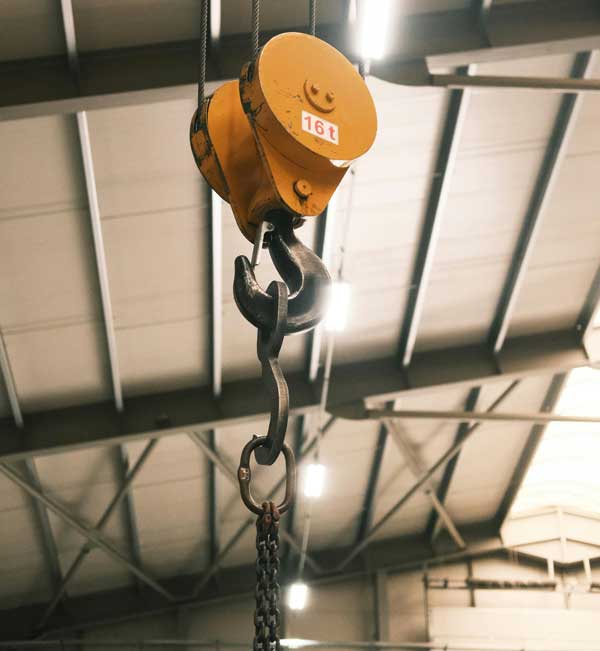
Rigging App puts essential rigging calculations, interactive learning tools, and practical scenarios into one mobile resource.


The Rigging App is available now.
English and Spanish settings available
Contact us about enterprise deployment, team management, and customized solutions.
Contact Us Rigging App is more than a calculator. It's a tool that puts essential
rigging calculations directly in the hands of the people who need them.
By turning measurements into calculations quickly and providing
built-in warnings and guidance, Rigging App helps professionals work
more efficiently while reinforcing proper calculation practices.
Helps identify potentially unsafe inputs and extreme sling angles.
Built-in warnings help users recognize conditions that require attention.
Interactive calculations help users connect measurements to rigging results.
See how dimensions, angles, and loads affect the final calculation.
Give your team a common tool for performing and checking calculations.
Support consistent calculation practices across your organization.
Perform calculations in seconds instead of working through them manually.
Calculate load weights, sling tensions, and forces quickly in the field.
Turn calculation time into application and decision-making time.
Spend more time applying rigging knowledge and less time working through manual calculations.
Put calculation tools directly in the hands of instructors and trainees—in the classroom or the field.
Reinforce calculation concepts through hands-on, interactive practice.
Explore the calculations and tools included in Rigging App. From load weights and sling tensions to force calculations and built-in validation, the app brings essential rigging math together in one place.
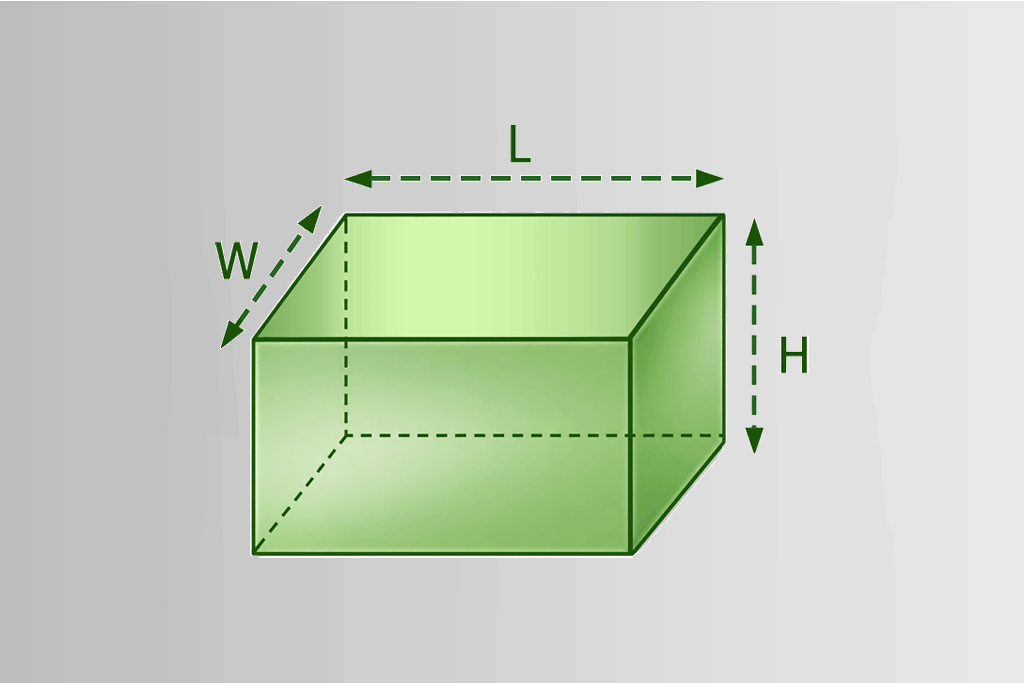
Estimate load weights for various shapes based on dimensions and material type.
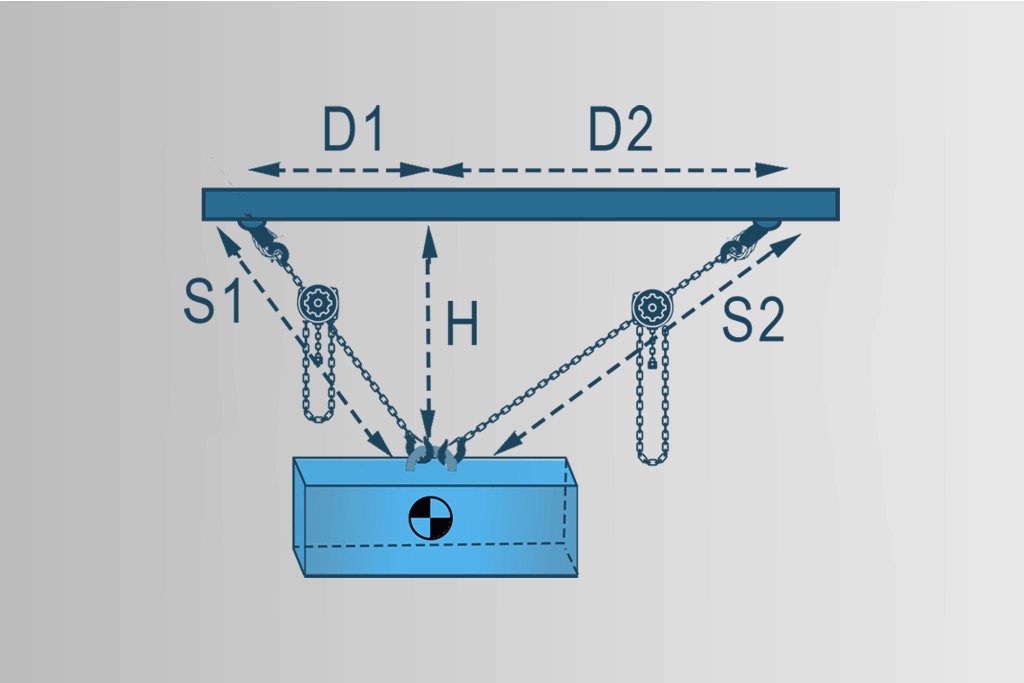
Computes sling tensions from load, angle, and setup to prevent overloads and ensure safe lifts.
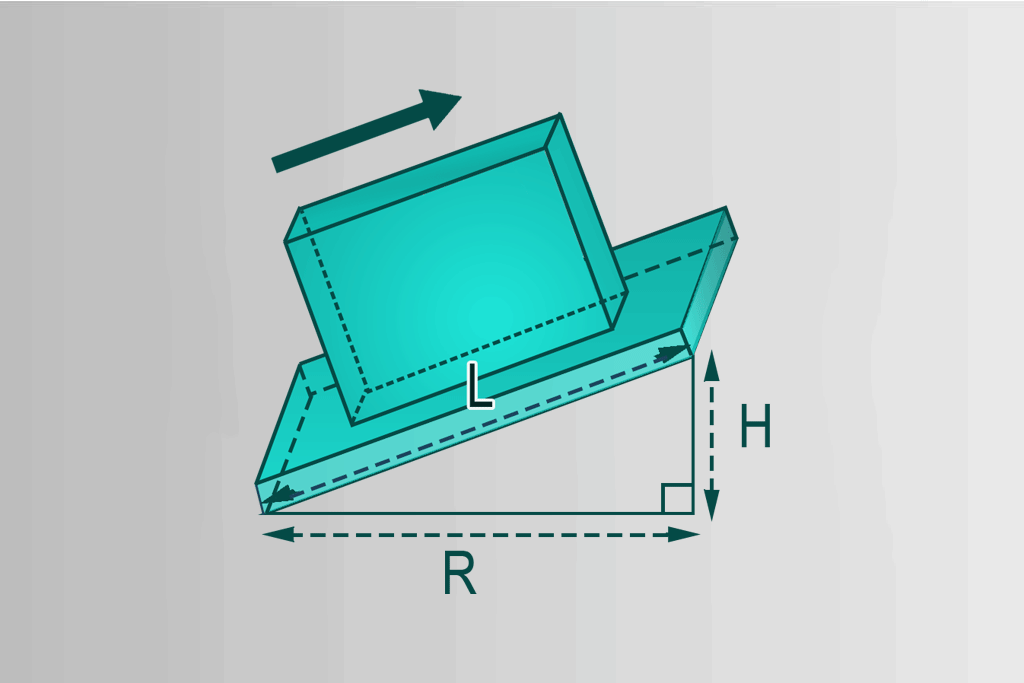
Calculates lifting and pulling forces for level or sloped surfaces.
Automatically checks for impossible or illogical entries.
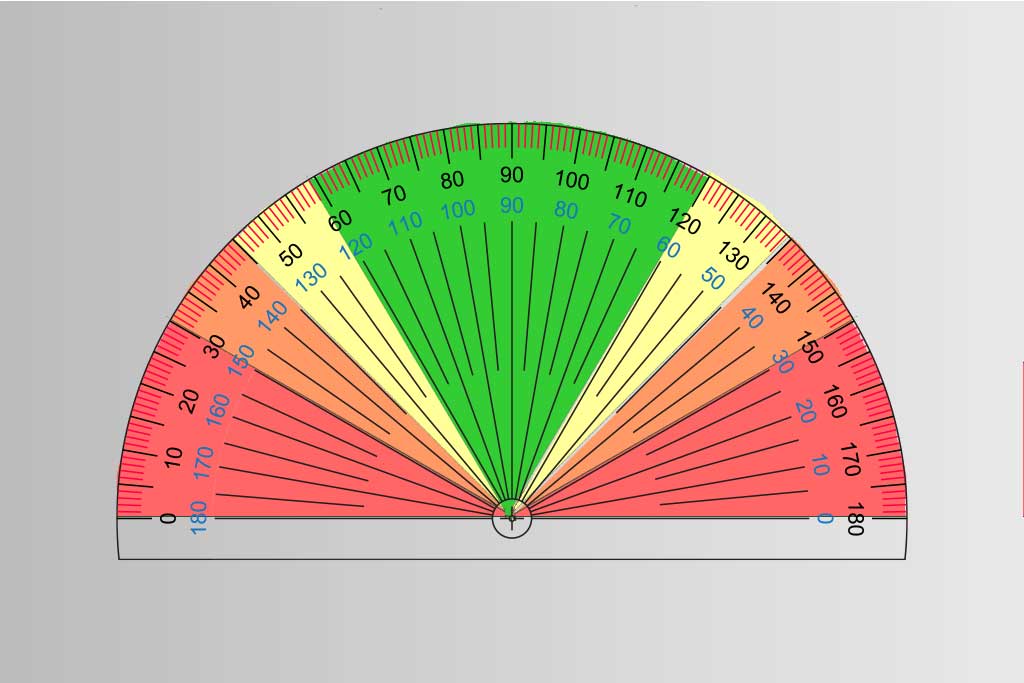
Identify unsafe sling angles instantly with built-in safety warnings for extreme angles.
Enter measurements in either feet/inches or metric units.
Switch between English and Spanish directly in the app.

Use the app without an internet connection once logged in — perfect for jobsite conditions.
Explore the calculations included in Rigging App.
Pick the plan that matches your goals—from Free to Enterprise, with custom options available.
Free access to essential load weight calculations.
Full access: every calculator, every feature, every lift.
Rigging calculations for teams of any size.
Custom Fit for Your Company’s Needs
Give your team a common tool for rigging calculations, training, and field use.
Give instructors and field personnel a common tool for performing and checking rigging calculations.
Put interactive calculation tools directly in the hands of instructors and trainees—in the classroom or the field.
Spend less time on manual calculations and training, and more time on rigging application.
Distribute Rigging App through your organization's Mobile Device Management (MDM) system for controlled deployment.
Let's discuss how Rigging App can fit your organization's needs.
Contact Us Have a question about Rigging App, need support, or interested in an
organization-wide solution?
Contact us to discuss your needs, custom solutions, or enterprise options.